Tech Tip: It’s shortcut time!

Here’s some more cool time-saving shortcuts for when you’re working in documents or emails etc:

CTRL + [  – changes the font size down 1 point each time you press it

CTRL + ] – same as above but this one increases the font size by 1 point

CTRL + A – selects all

CTRL + Z – Undo

CTRL + Y – redo

CTRL + P – print

CTRL + S – save. This one is great when working on big documents to regularly save your work.

Connecting Your Business with Virtual Desktops

Desktop virtualisation offers a novel way for businesses to reduce costs, boost efficiency, and even improve network security. It’s little wonder then that the technology has been greeted with widespread enthusiasm. Thirty-six and half percent of businesses surveyed by Evolve IP at the beginning of this year. They already implemented a virtual desktop system, and 97.5 percent of them said they were highly satisfied with it. Moreover, one in three plan to implement a virtual desktop as a service solution over the next three years. Clearly, desktop virtualisation is taking the business world by storm—so what is a virtual desktop and is it the right solution for you?

One computer, thousands of monitors

Desktop virtualisation allows you to connect physical desktops with a remotely hosted operating system (and its applications), regardless of how old or new the receiving desktop is. In other words, a single server provides the computing power for your virtual environment—all your employees need is a screen.

Cut costs and gain speed

One of the chief benefits of virtual desktops is that they save you from spending money on expensive physical desktops. Instead, you can invest in one server and use it to make your business’s computer environment available on multiple inexpensive desktops. There’s no loss of performance capability if you do this. In fact, since you only have to manage one system (on your server), it’s often quicker and smoother.

Secure mobility

Large companies can take advantage of virtual desktops to provide employees with greater flexibility. For example, Suncorp Group is Australia’s largest general insurer and fifth largest bank. It now uses desktop virtualisation to give its employees the freedom to move around the office, work from home, and even access their desktops from the field.

According to Gartner, this approach is also more secure because each virtual desktop is remotely managed to ensure it meets compliance standards. As a result, employees needn’t worry about installing software, backing up files, or scanning for viruses. Moreover, when employees view data, it isn’t transferred to their personal device, but remains in a secure, centralised location.

Traveling light

Virtual desktops free mobile employees from lugging around expensive high-performance machines with disk drives, huge storage capacity, and their pesky need for routine hardware updates. A light laptop with a screen, a keyboard, and an Internet connection is all they need. And if a device ever crashes while running a virtual desktop, it’s immediately isolated. If everybody else in the network can carry on helping your business achieve success.

Virtually perfect

There are a few obvious disadvantages to implementing desktop virtualisation. We can even expect that the technology’s increasing popularity will lead to new ways of improving and creatively employing it. In other words, desktop virtualisation is only going to get better.

EOFY $20,000 asset write-off

In case you missed it in the budget, the government has extended the $20,000 asset write-off for SME’s for another 12 months.

What does this mean?

Until June 30 2018, SME’s with a turnover under $10 million are eligible for an immediate asset deduction up to $20,000.  Speak to your accountant first but in general. Any hardware used in the day to day running of the business is eligible for this write-off.  This includes phone systems, servers, PCs & Notebooks.

So, now is a great time to invest in your businesses growth. First improve productivity or just address those old and outdated systems. They may be vulnerable to security flaws such as the recent “WannaCry” saga.

Call for more information about any hardware, software and security requirements.

Tech Tip: How to start your PC on a schedule

Do you hate waiting for you PC to startup in the morning?
It can be a real pain, particularly if your PC is a little on the old and slow side of things.

Rather than just leave your PC on 24×7 there is another way!
Get your PC to startup automatically beforehand so it’s ready and waiting for when you start work.

First up – talk to your IT provider! Chances are they have systems in place to just this.

If that’s not an option you can do it yourself.
Unfortunately we can’t do this in windows so we have to go through the PC BIOS.

Every brand of PC is a little different, but as a guide:
1. Open your computer BIOS settings menu (do this from the black screen that shows when first powering on your PC).
2. Look for the power settings menu
3. Set the day and time you want your PC to power on.

Moving to the Cloud

I’m moving to the cloud!  I hear SME’s say this more than anything else about IT.  When I ask what that means, there’s often an uncertain and delayed response. It reminds me of the early SharePoint portal development days.  I recall a developer telling me businesses would approach him for a portal but many didn’t know what they wanted it to do.  All they knew was they wanted a competitive edge and they didn’t want to get left behind.

Moving to the cloud is rather like that today. I hear people getting bogged down in the semantics of Public Vs Private Vs Hybrid clouds while there is often a lack of discussion about the business strategy such as what they are hoping to achieve. So, if you’re not sure either, consider getting advice and guidance before jumping in.

KISS (Keep It Simple Stupid)

  • What functionality do you need?
  • Do you need scalability for growth or wholesale business changes
  • Do you have compliance requirements?
  • What is your budget?
  • What’s out there already:
    • Are there applications or suites you can subscribe to that already deliver this such as Salesforce, Xero, 365 or Autotask Workplace?
    • Do you need to build systems in AWS or Azure to run your applications?
    • Do you need both?

Choosing a service provider:

  • Are they business focused.  Too tech focused is a red flag but also beware of the complete absence of tech too as that may be a sign of marketing fluff over substance.
  • Security.  This is a tough one as most providers are light on for information.  If they show insufficient transparency, look for other options because ultimately, you’re still responsible for any breaches!
  • Data center locations.
    • Do you need local data center for performance?
    • Additonal Interstate data centers for redundancy?
    • Are you allowed to store data overseas?
  • Solid T&C’s and contracts. Just because it’s in the cloud doesn’t mean you’ve outsourced responsibility.
    • Many cloud services do not provide sufficient backup by default.
    • Make sure you own your data.
    • Can you change providers easily?  Often its difficult.
  • Does service & support meet your requirements?  Some smaller vendors still don’t offer phone support.
  • Clear definition of costs.  This can be very difficult as many offerings are based on usage while many businesses don’t yet understand what they need or even what they are currently using.  Even comparing costs between vendors can be difficult with complicated and nonlinear pricing models.  ROI calculations can be very difficult.

Don’t forget about the real world practicalities.

  • Is your Internet service good enough.  There’s no point putting anything in the cloud if it ends up unusably slow or unreliable
  • Desktop & User Management used to be performed by your servers.  You seriously need to consider building this into your cloud solution too
  • Data retention. You outsourced responsibility to maintain systems but if your data keeps growing, so do your monthly cloud costs.
  • Is your data backed up and kept for long enough?
  • Who’s managing all this for you?
  • Is it financially viable?  Cloud doesn’t mean cheaper.

If any of the above has created more questions than answers…welcome to the club.  I truly believe our expectations of technology have changed more than the actual technology in the past 10-15 years.
Tech Tip: Dropbox and Ransomware. What to do if your files are encrypted

Dropbox will sync any files that are added to it.
So, if a virus or malware encrypts your files they will upload to dropbox and then sync to all your other devices.

Luckily for us there is a solution!
Dropbox keeps a copy of all changes made to your files for 30 days. (or even longer if you use Dropbox Business)

With this it is possible to restore individual or a large number of files to the way they were prior to infection.

Here is a great link to explain how to go about recovering your files: https://www.dropbox.com/en/help/8408

One last point – make sure you get your PC cleaned of the malware before doing any of this! Otherwise it will continue to re-infect everything!

NEWS: Wirelessly mirror Notebooks or phones to a TV

Recently a number of people asked me for simpler ways to connect a variety of different devices to TV’s.

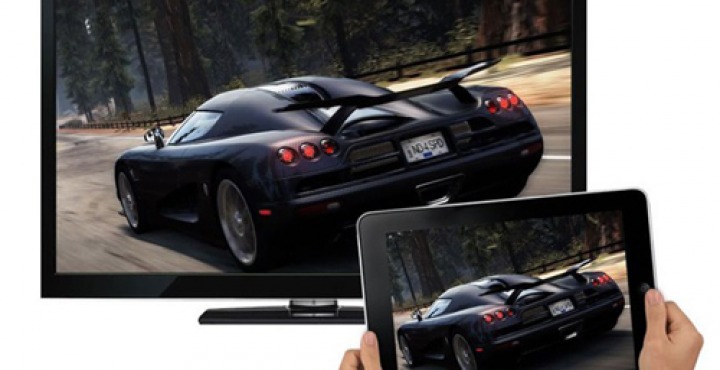
Whether it is for presentations in the board room or just playing Netflix and photos at home, shedding the need for cables while making it easy for anyone to connect is a cool idea…and Miracast is a protocol or standard for doing just this.

While it’s very easy to do, many people aren’t aware they already have everything they need to do it now.

Most smart TV’s have Miracast built into them already and most relatively new Windows notebooks also support Miracast, as do Android phones and tablets.  You don’t even need a wireless network as Miracast creates its own direct device to device connection.

Don’t have a Smart TV or using iPhone?

There’s a number of inexpensive dongles you can plug into the TV that support Miracast.  These typically look like an oversized USB stick and plug into HDMI ports on your TV.

Some of the better known ones include the Microsoft Wireless Display Adaptor, Netgear Push2TV as well as options from Asus, Belkin & Samsung.  A number of Media Players people already have connected to their TV also support mirroring.

Some dongles also support Apple Airplay giving iPhone & iPad users similar functionality too.

How to do it

Different TV brands call it by different names such as LG ‘Screen share’ and Samsung ‘AllShare’.  Irrespective of what it’s called, you typically use the input button on your remote control to access a Screen Mirroring or Casting function.

On a Windows PC you typically need to do some, or all of the following:

  • Go to the Settings menu
  • Enable WiFi Direct (may already be enabled)
  • Set password from your TV (not always required)
  • Add Device
  • Connect Wireless Display
  • Select Smart TV  (you may need to accept this on the TV)

Android devices have intuitive setup procedures, but they vary between brands and models.  If your device doesn’t have a simple “quick connect” function, just go to “Settings” and you’ll find a ‘Device connection’ and/or ‘Screen mirroring’ function.

What about Google Chromecast?

While easy to get up and running, Chromecast is limited to displaying specific applications, not mirroring your entire screen.  It also struggles playing some types of content too.

My advice, give it a try.  You’ll be surprised by how simple it can be and the number of things you can use it for!

Tech Tip: Is your internet running slowly?

Try using a different Browser

Many people have found the default browsers on their PC’s (Internet Explorer or Edge) and Apple Mac (Safari) appear slow and unresponsive on particular websites.  While some time consuming fine tuning may alleviate the issues to some degree. Often the quickest and best results come from using a different browser.

Download Chrome:         https://www.google.com.au/chrome
Download Firefox:           https://www.mozilla.org
So, Try them!  You may be surprised with the difference.